Quick start
Open the list, pick a repository and clone it, then try browsing and partial clone.
Open the list
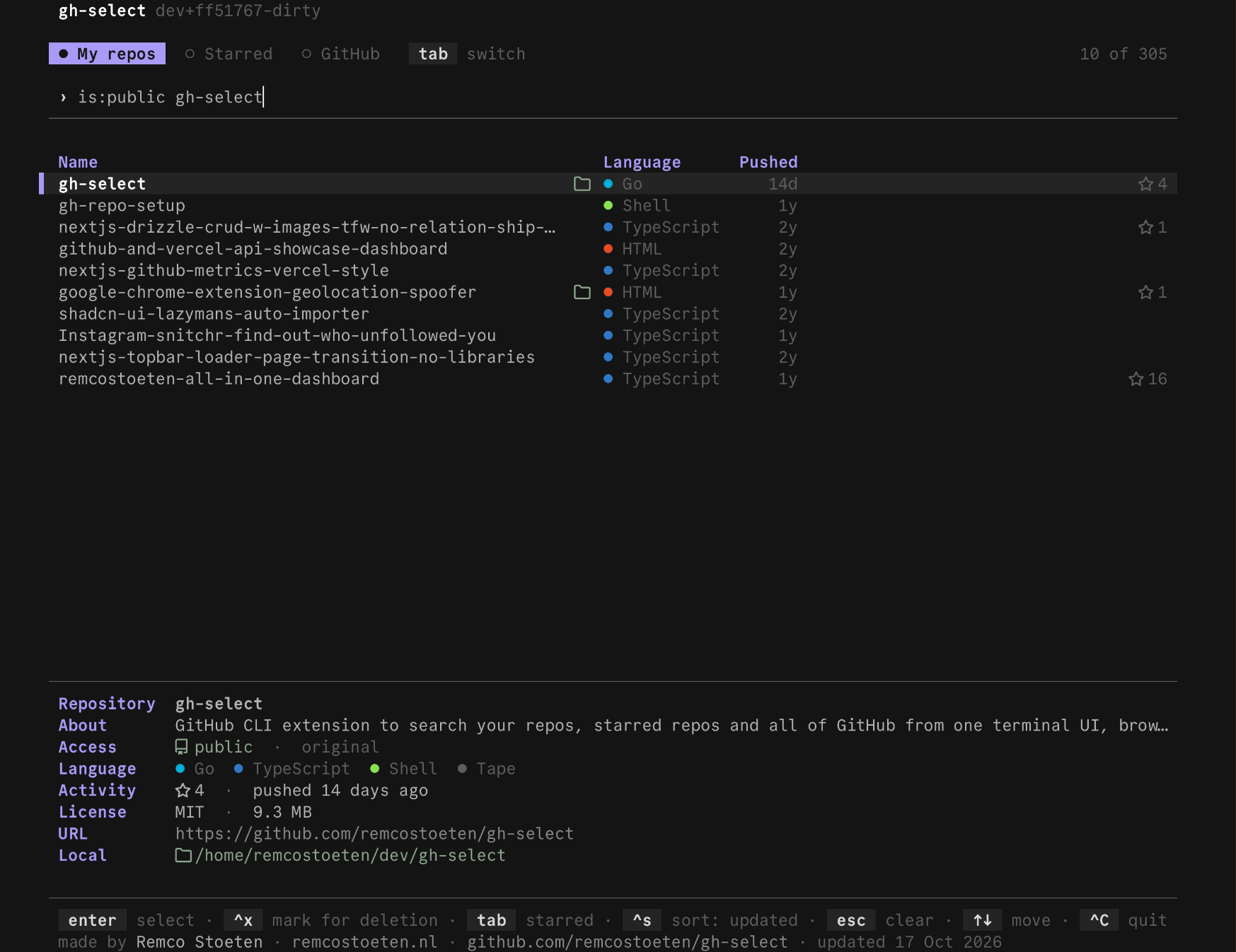
The first run fetches your repositories, which takes a few seconds. After that the list opens at once.
Type to filter. ↑ and ↓ move. enter opens the menu for the highlighted repository.
Pick an action
Each action has a number, so 1 runs the first one.
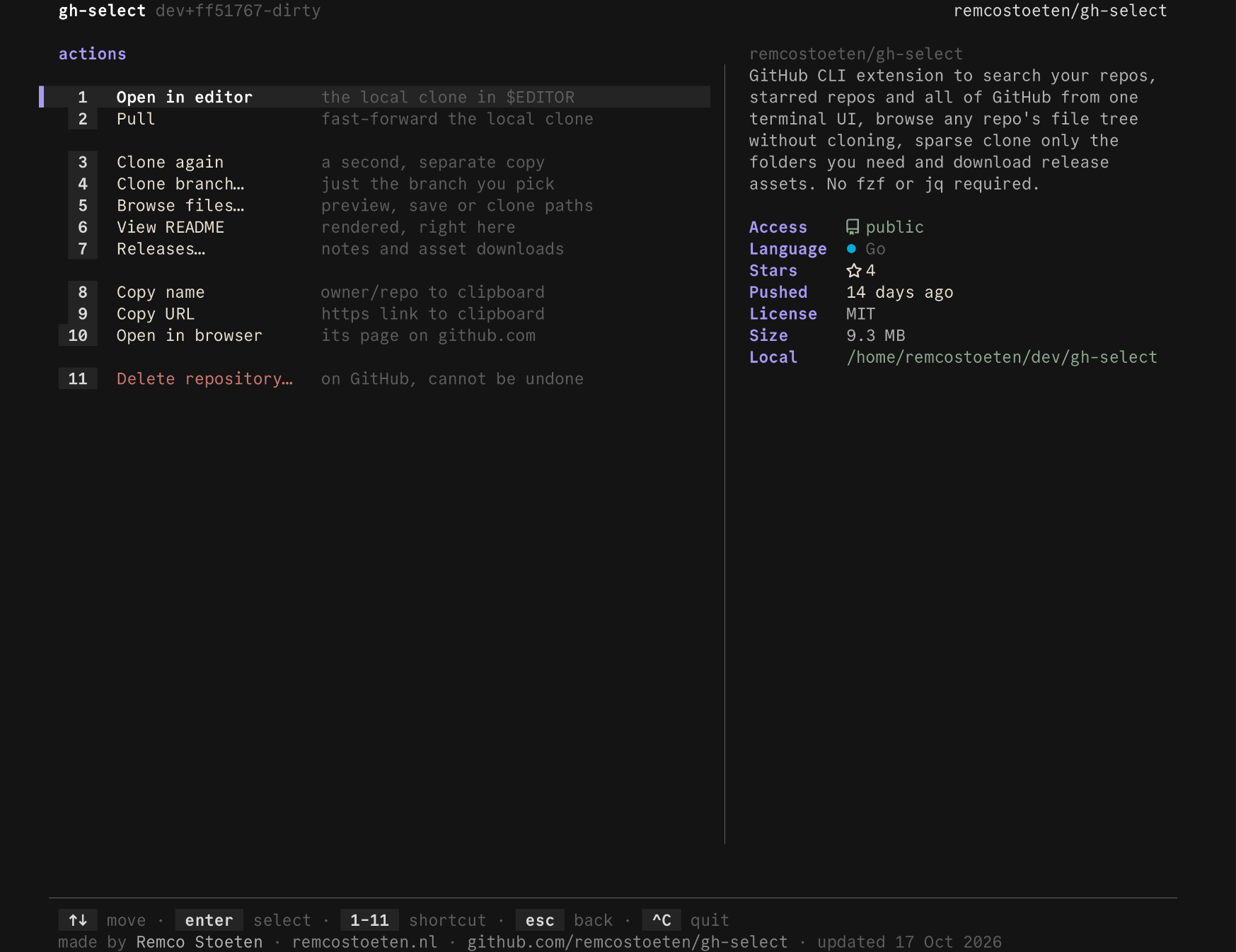
Clone copies the whole repository into the current directory. Open in editor opens it. Browse files… lets you look inside before cloning anything.
Browse files
Choose Browse files…. Move with the arrow keys and press → to open a folder or preview a file.
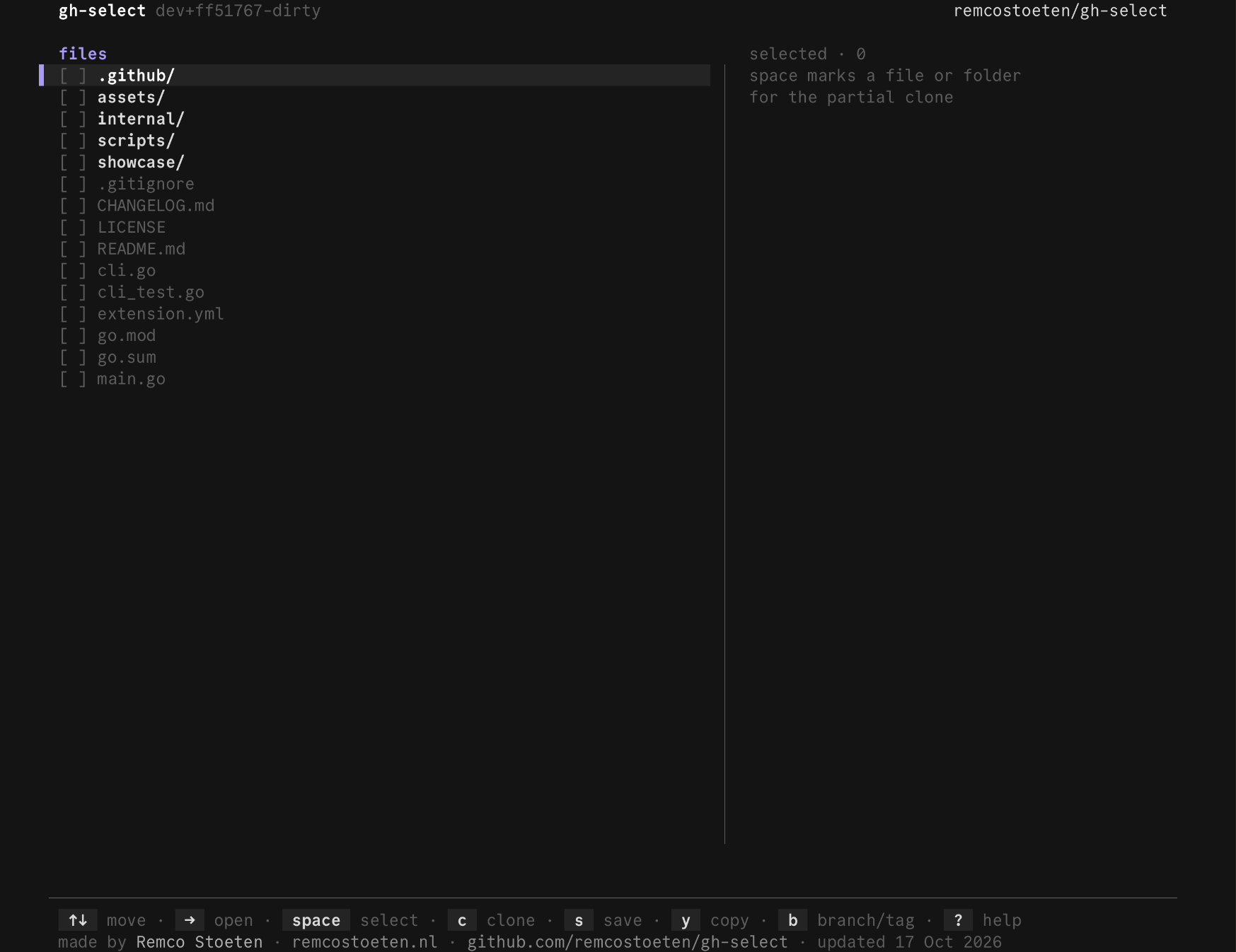
Press space on a file or folder to mark it.
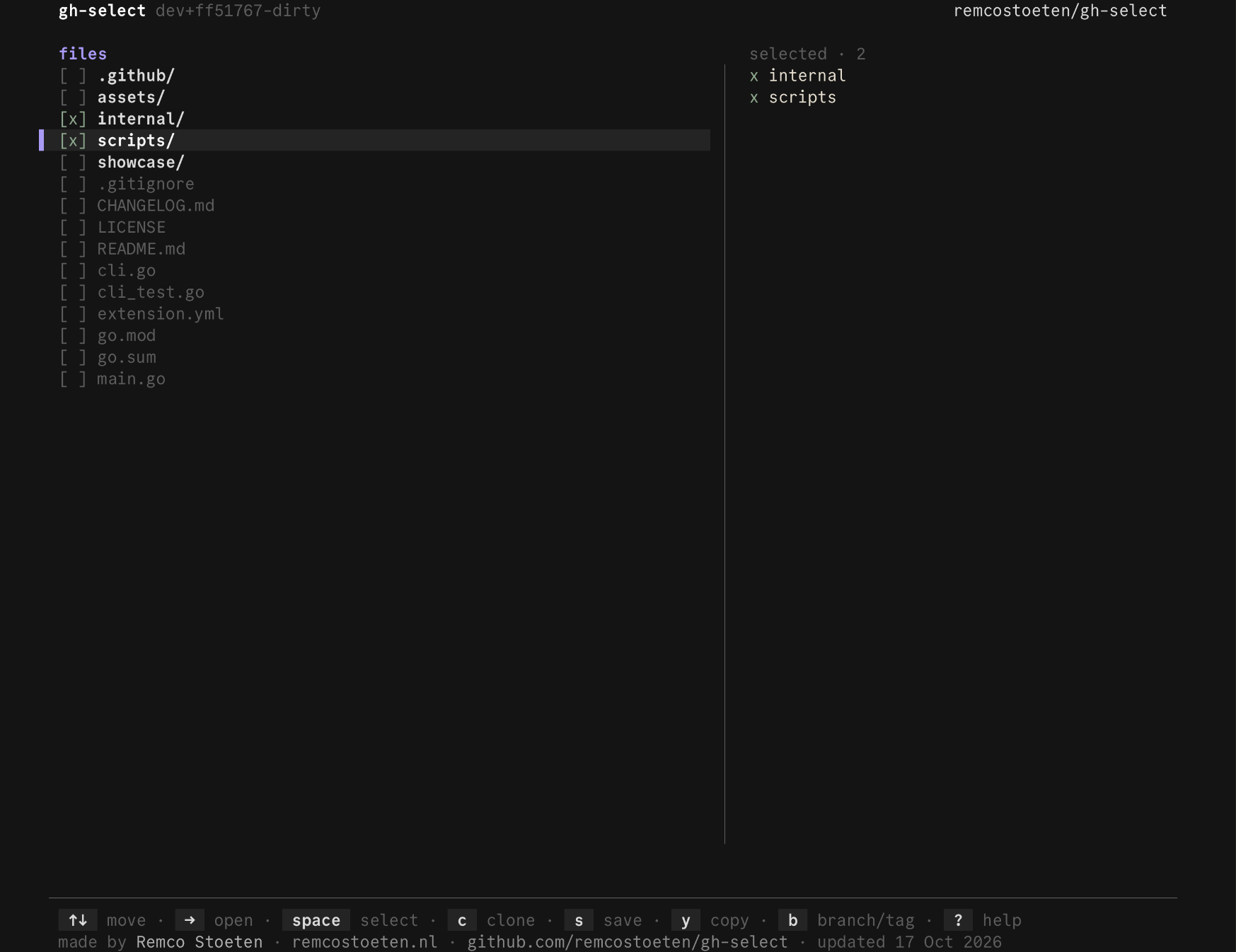
Clone only what you marked
Press c. gh-select clones just the marked paths, so a large repository stays small on disk.
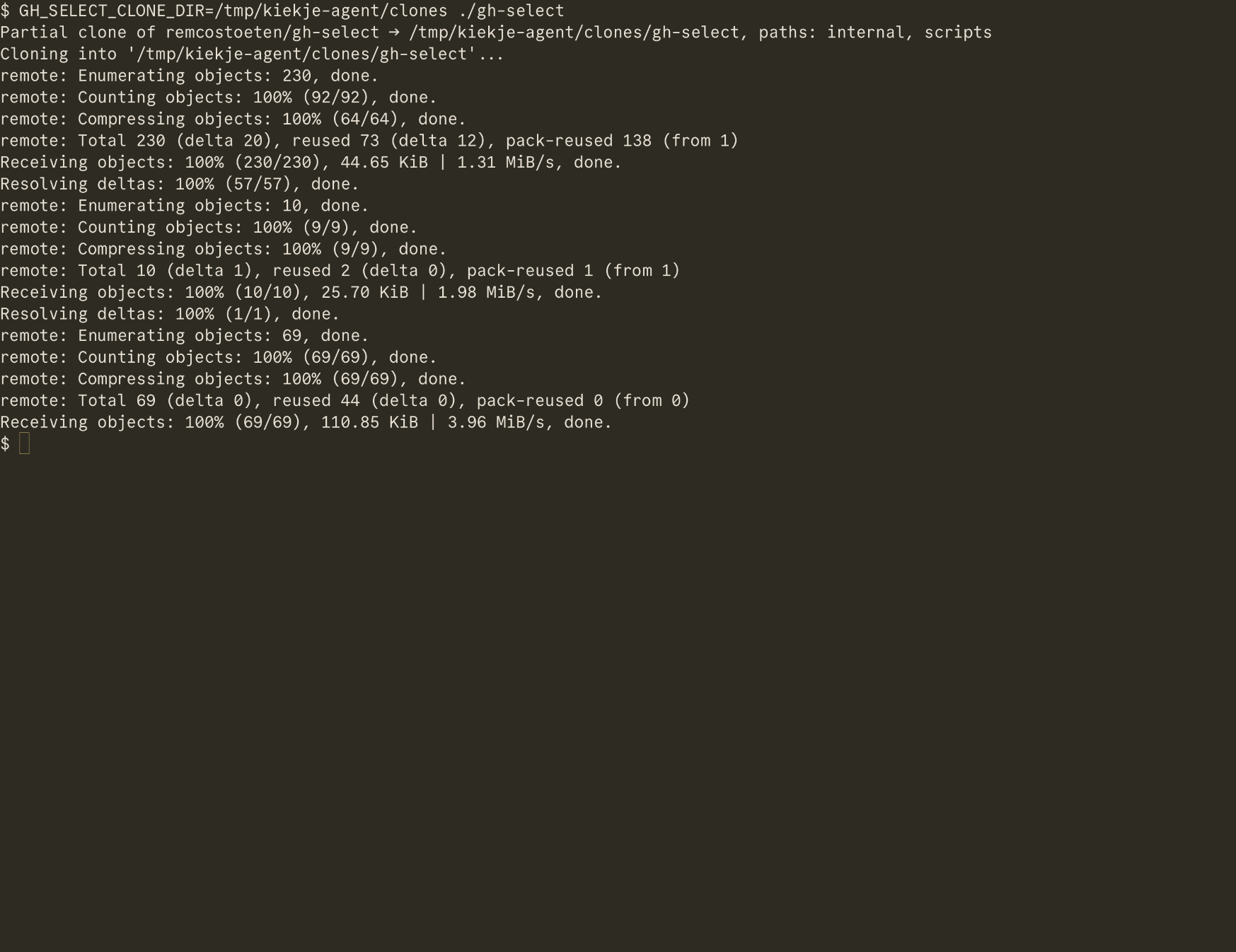
Where clones go
Clones land in the current directory. To use one folder every time:
Search all of GitHub
Press tab twice to reach GitHub and type a name. See Finding repositories.
Help in the app
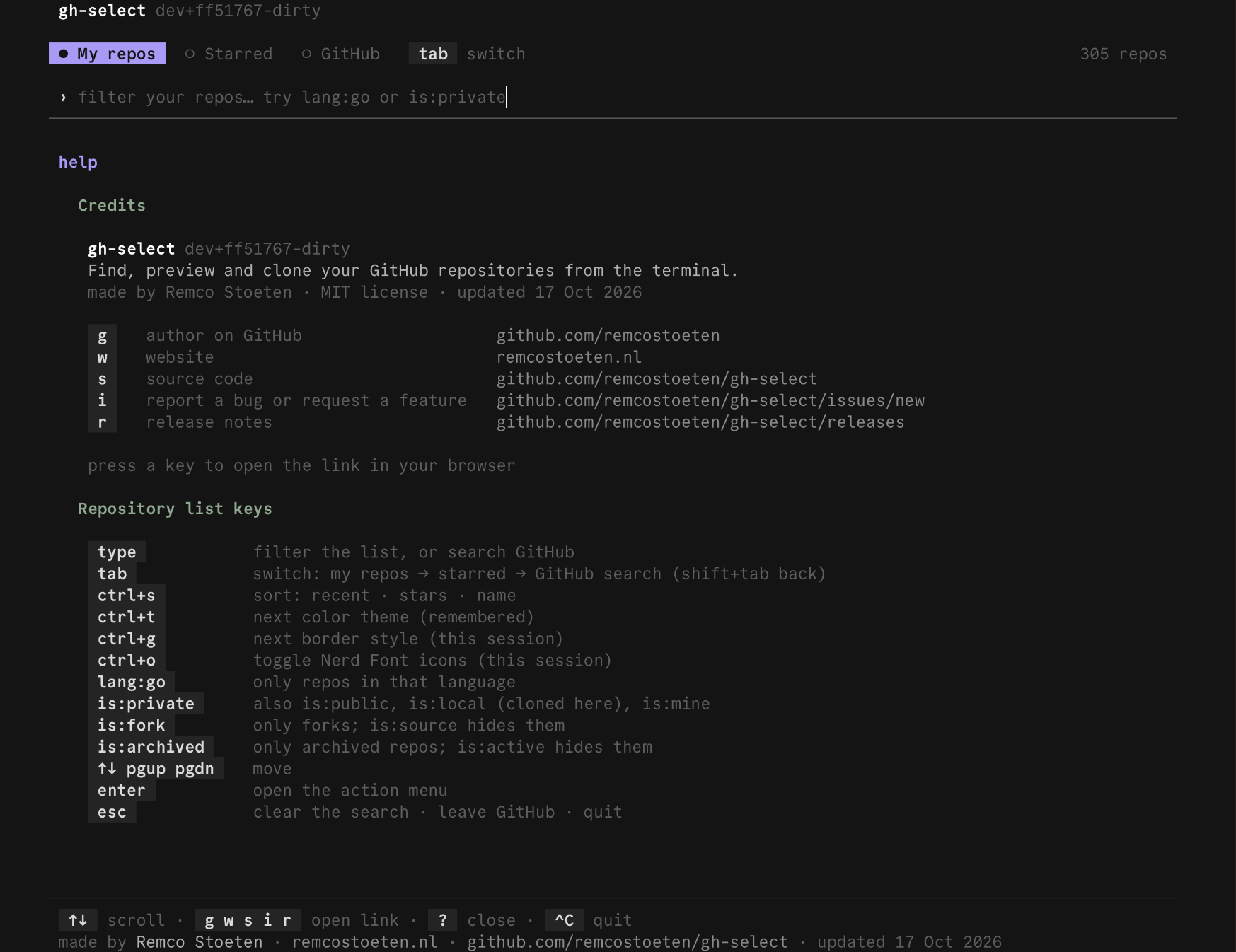
Press ? on an empty search to see every key.
Last updated on