Browsing and partial clone
Look inside a repository without cloning it, then clone or save only the files you marked.
Open the file browser
Press enter on a repository and choose Browse files…. It works for any public repository, so you can search GitHub with tab and browse code that is not yours.
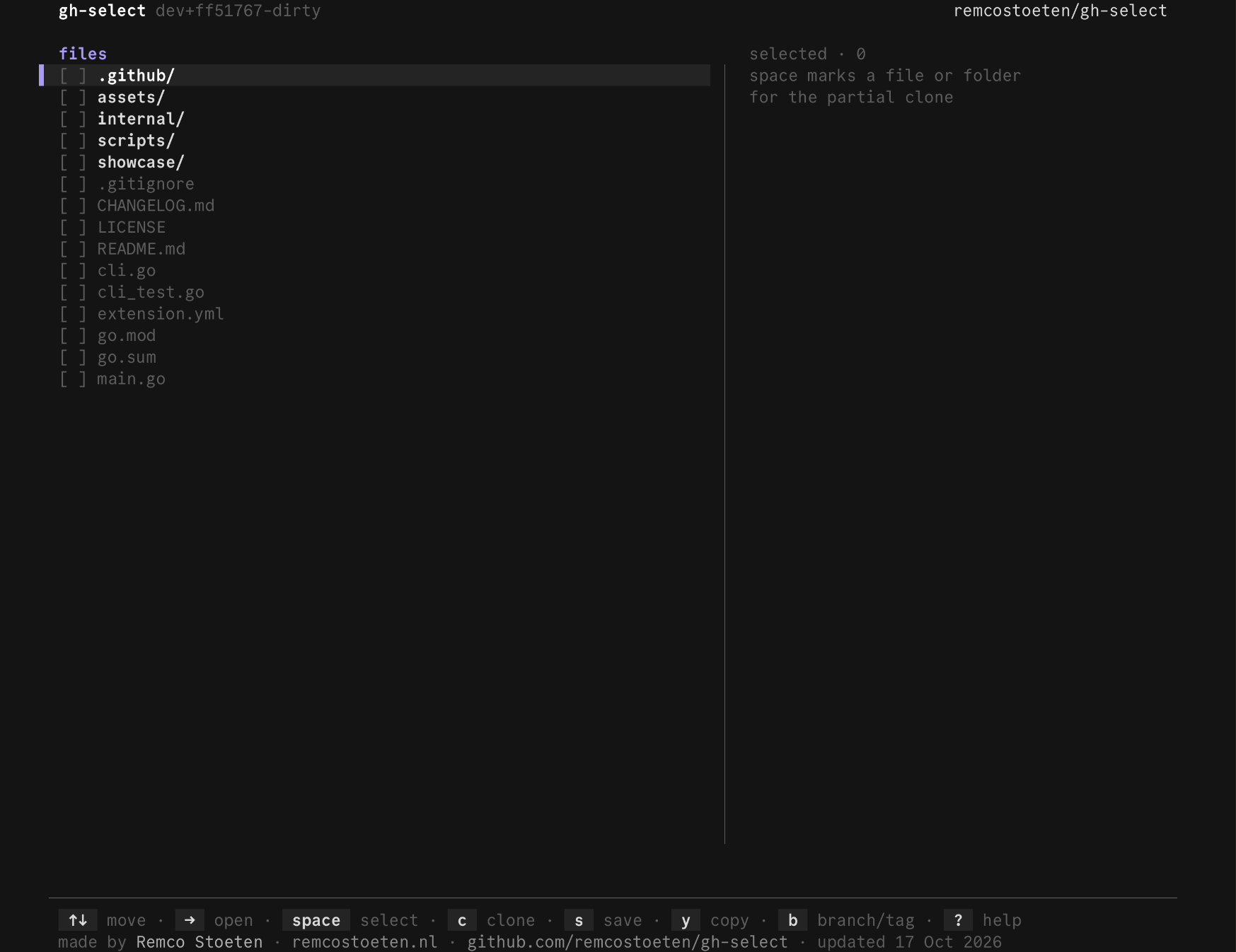
| Key | Action |
|---|---|
↑ ↓ | move |
→ | open a folder, or preview a file |
← | go up one folder |
/ | filter the current folder |
q | back to the menu |
Preview a file
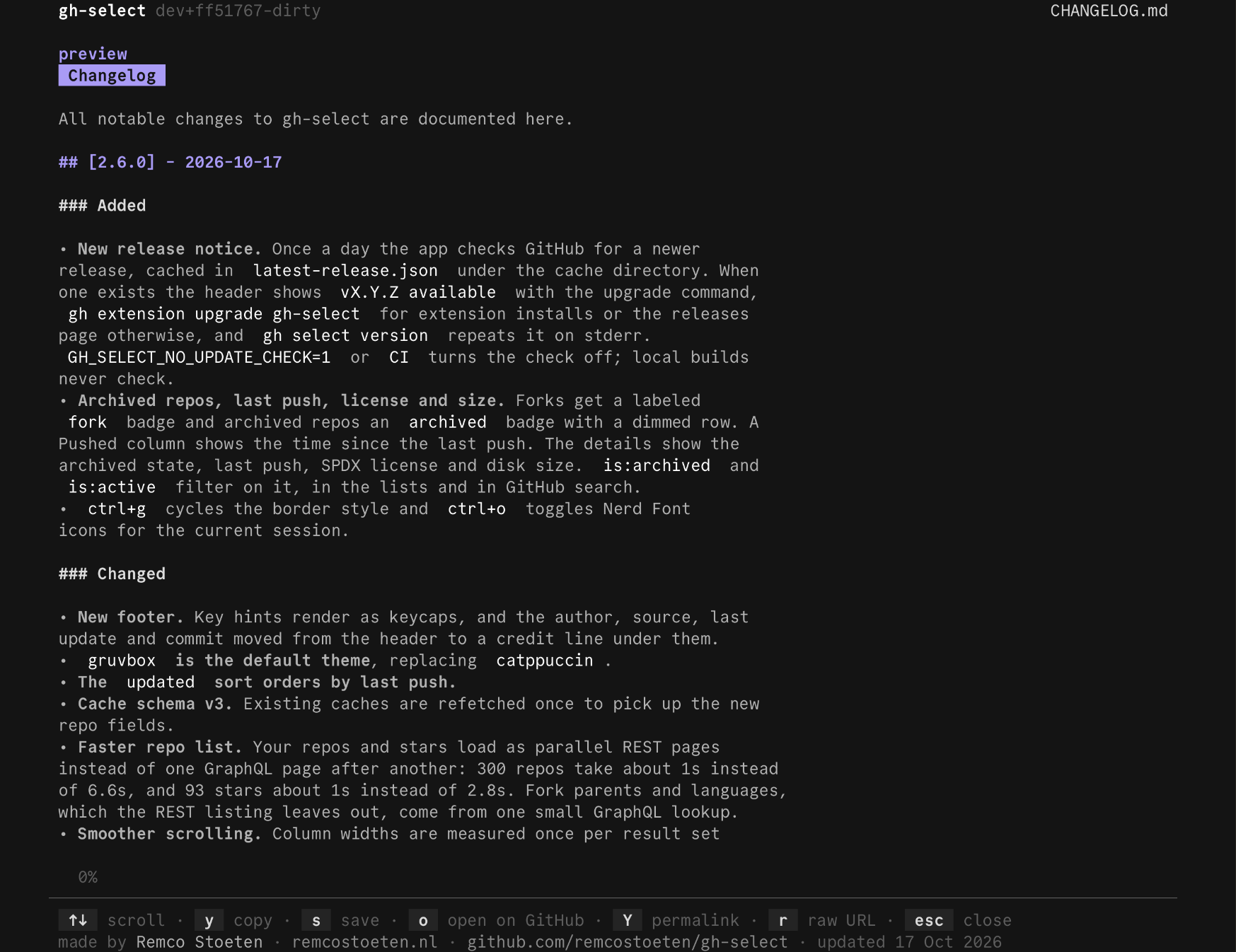
Press → on a file. Markdown is rendered, and other text files are highlighted.
Mark files
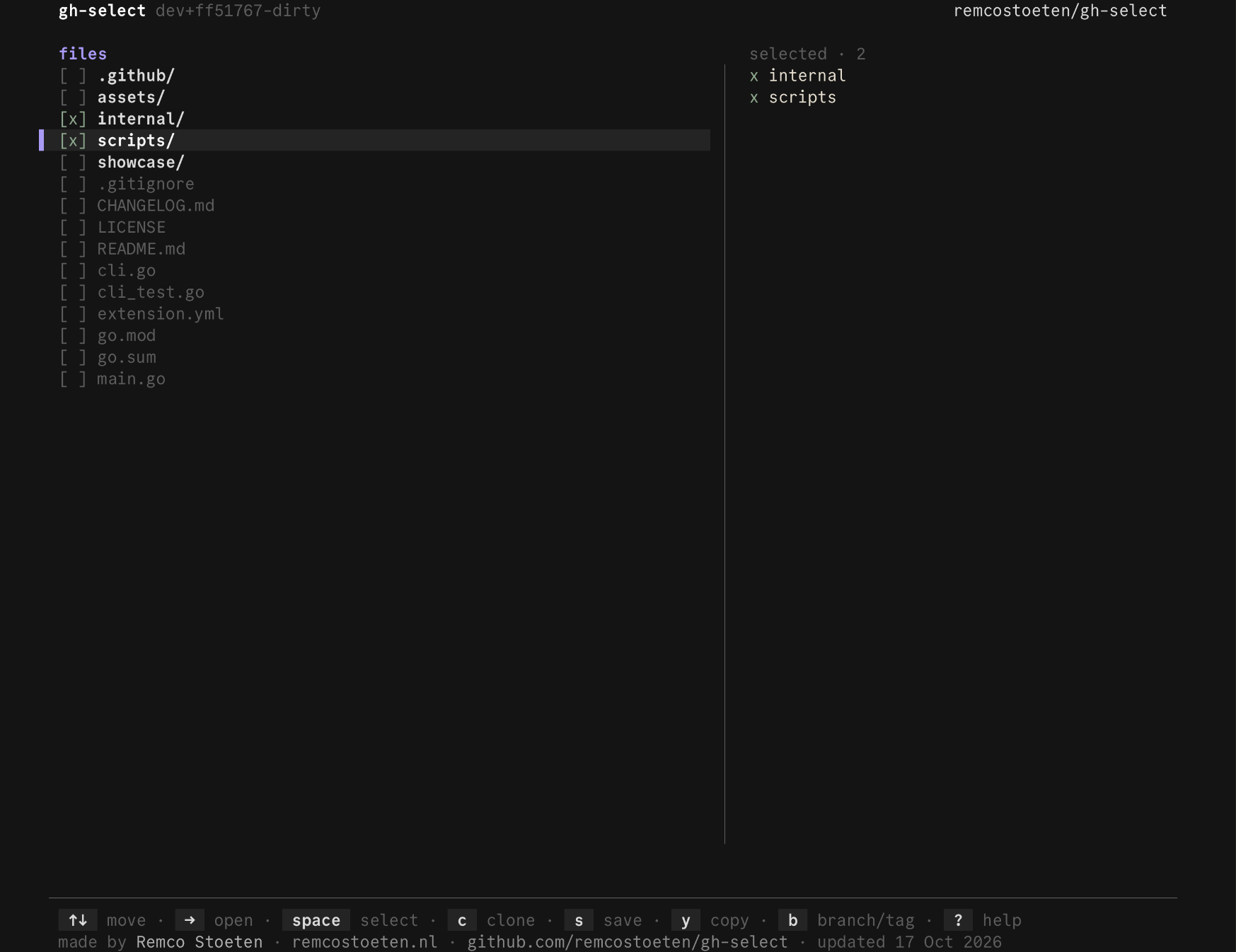
Press space on a file or folder to mark it. Marked paths are listed on the right.
Clone only what you marked
Press c. gh-select runs a partial clone, which downloads only the marked paths.
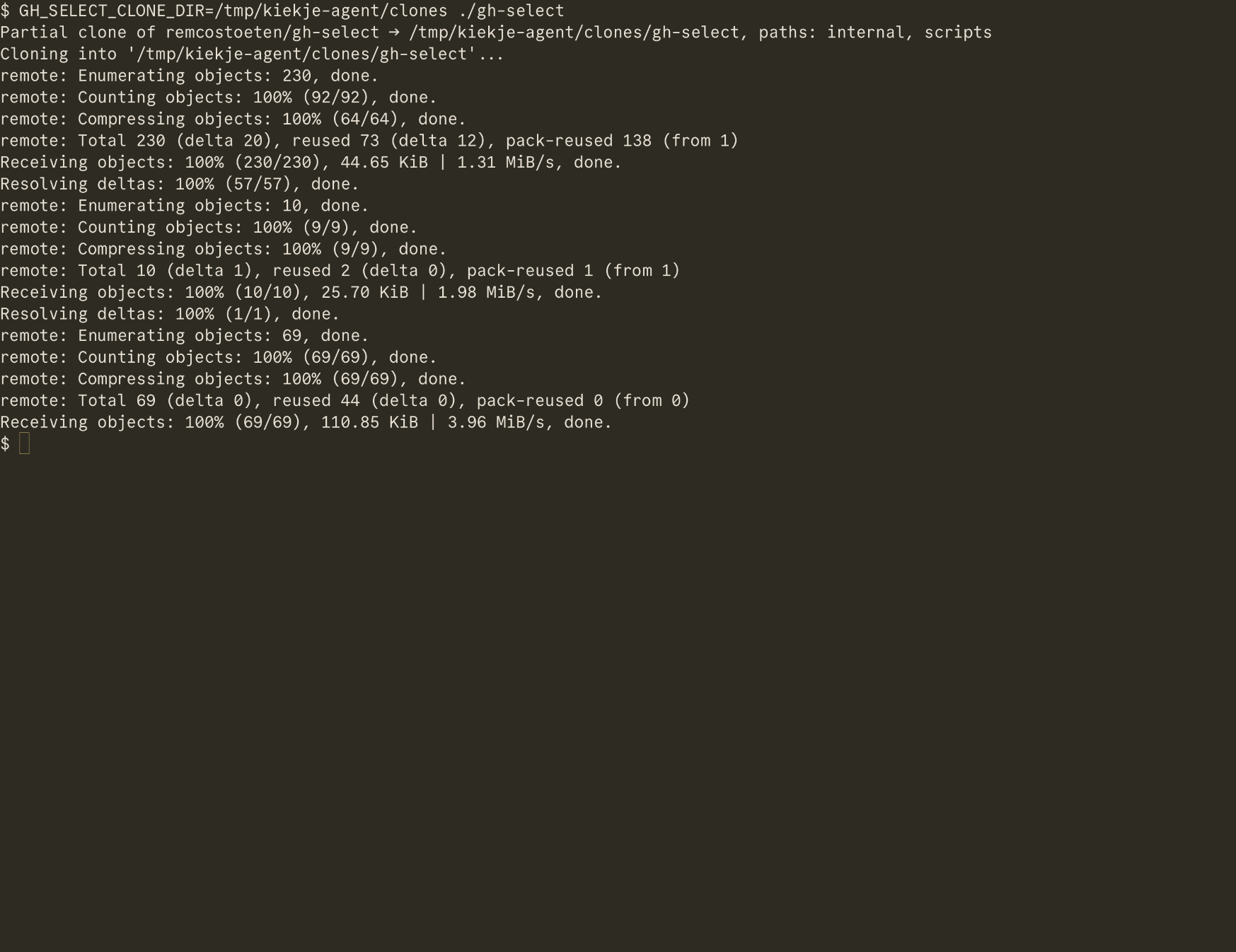
The result is a normal git repository with only those files in it. Run git sparse-checkout disable inside it to get everything later.
Save files without git
Press s to save the marked files, or the highlighted one, straight from GitHub. No git is involved.
- One file is saved into the download directory.
- Several files keep their folder structure inside a folder named after the repository.
- Files that already exist are never overwritten. The new copy gets a
-1suffix.
The download directory is the current directory unless you set --download-dir or GH_SELECT_DOWNLOAD_DIR.
Copy and share
| Key | Action |
|---|---|
y | copy the file's contents |
o | open the file on github.com |
Y | copy a permalink pinned to the current commit |
r | copy the raw file URL |
Other branches and tags
Press b to switch to another branch or tag. Preview, save and clone all follow it.
Details
- A partial clone runs
git clone --filter=blob:none --sparse, then a sparse checkout of your paths. - Saving is limited to 200 files at a time. Use a partial clone for more.
- Previews are cut at 100 KB.
Every key is in the keybindings reference.
Last updated on